
Importing subscribers from a file in CallAIder is the fastest way to add dozens or thousands of contacts to a group without manual entry. This guide walks you through the full workflow: from preparing CSV/XLSX to validating the final import report.
Where to Find File Import
- Open Telephony -> Call System.
- Go to the Subscriber Groups tab.
- Select the target group and click the upload icon.
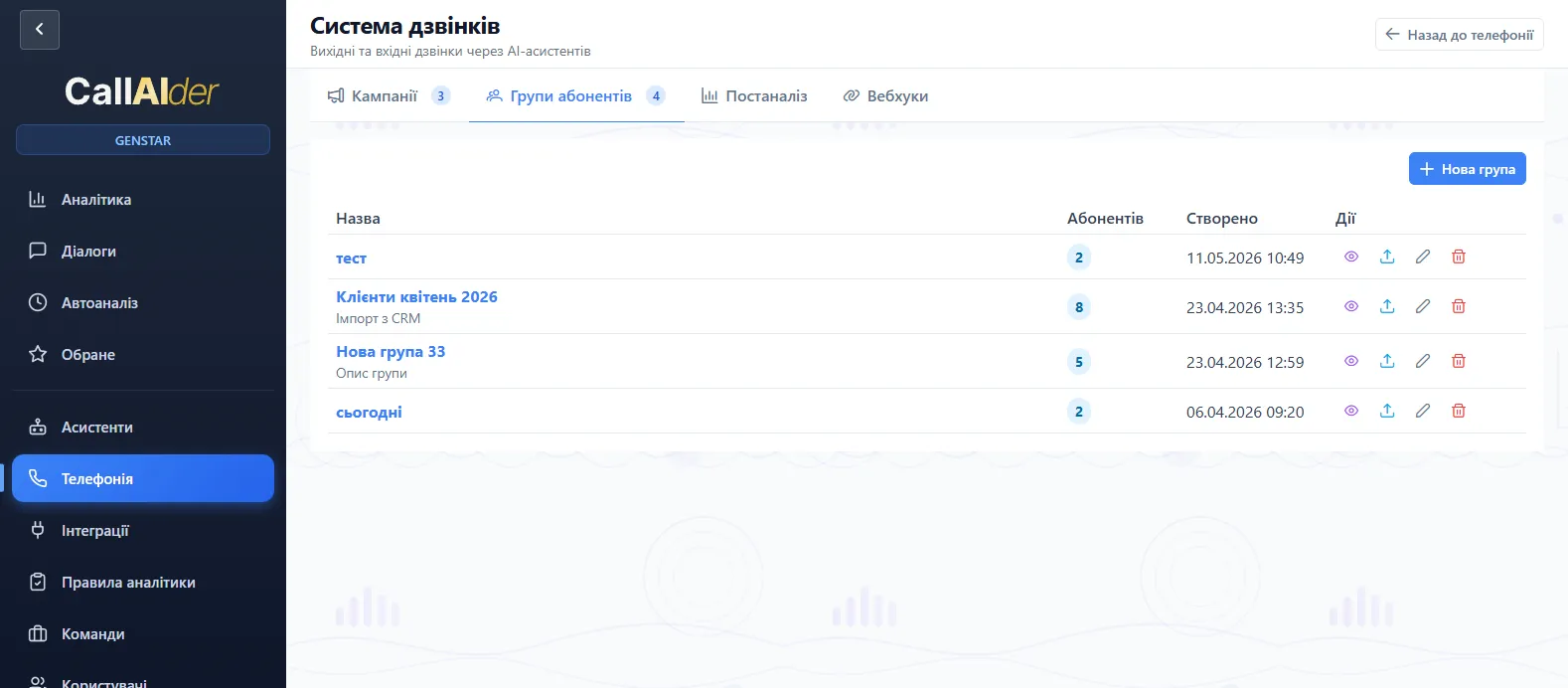
You will see a modal with two modes: Manual Entry and File Import.
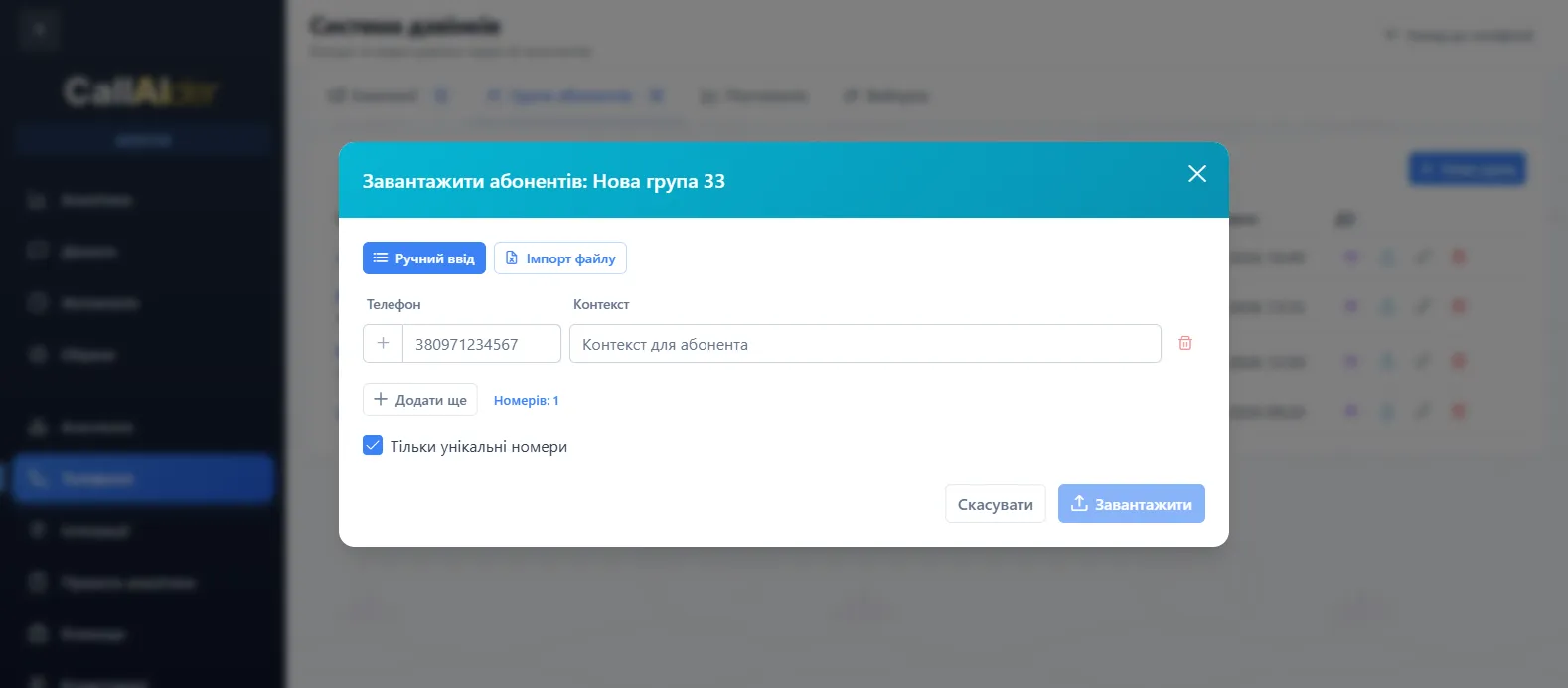
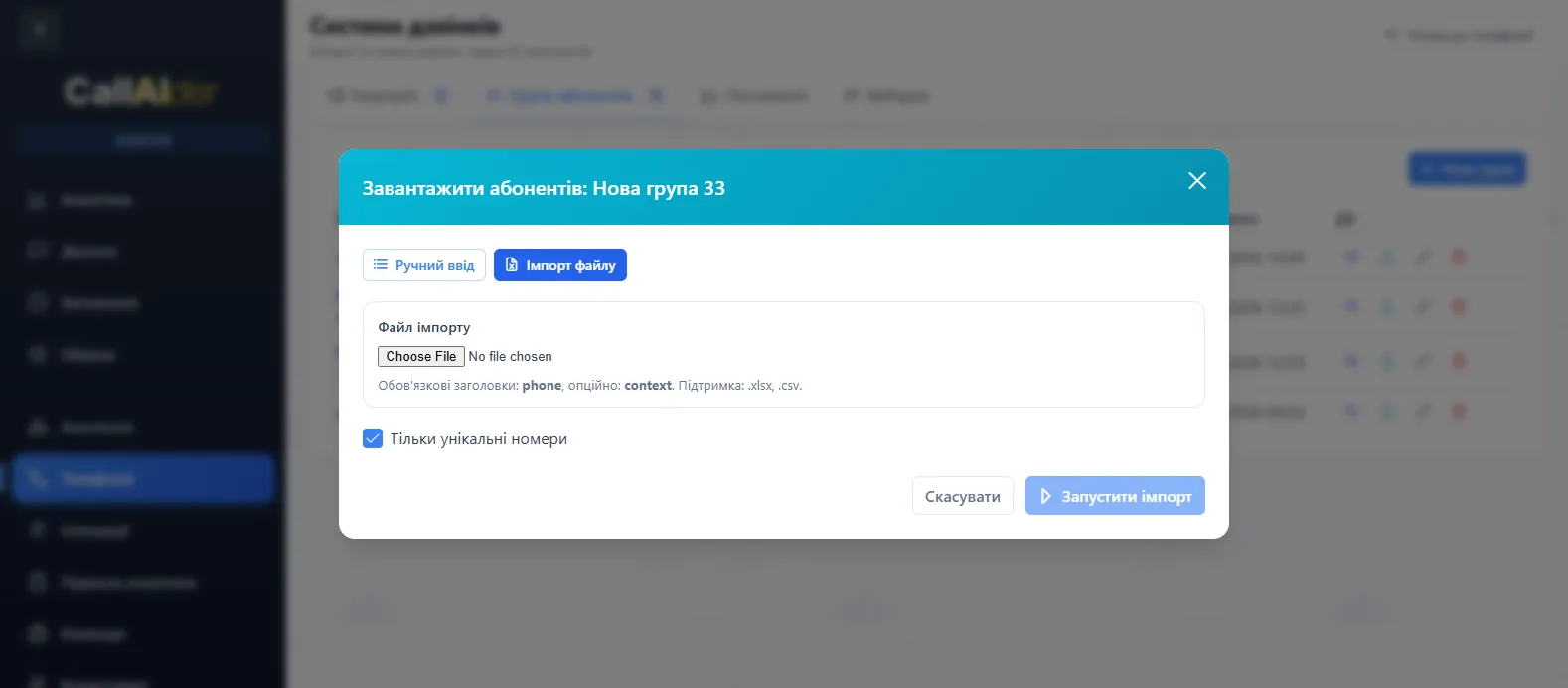
Switch to File Import.
Quick Start: Ready-to-Use Sample Files
To test the feature immediately, use these sample files:
Upload either file in the modal and start the import.
Supported Formats and Columns
Supported file formats:
.csv.xlsx
Expected columns:
- Required:
phone - Optional:
context
Use international phone format whenever possible, for example: +380971234567.
How to Use the context Field
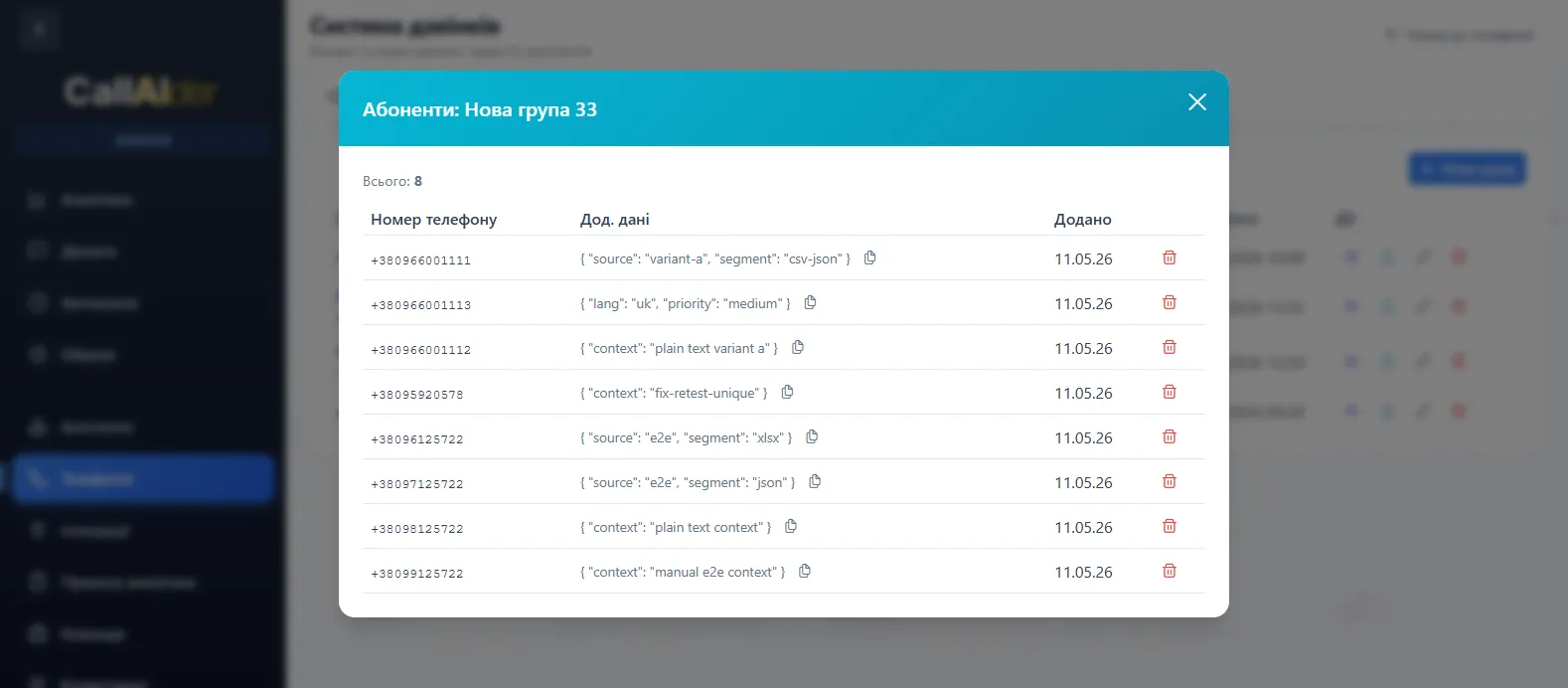
context stores additional metadata for each subscriber. After import, it appears in the additional data section.
Common variants:
- Plain text:
VIP customer, call back after 3:00 PM- JSON object:
{"segment":"vip","language":"en","source":"crm"}CSV tip: if you put JSON into context, make sure quotes are escaped correctly in the CSV cell.
Step-by-Step Import Flow
- Open the File Import tab.
- Select a CSV or XLSX file.
- Enable or disable Unique numbers only as needed.
- Click Start Import.
- Wait for completion and check the summary.
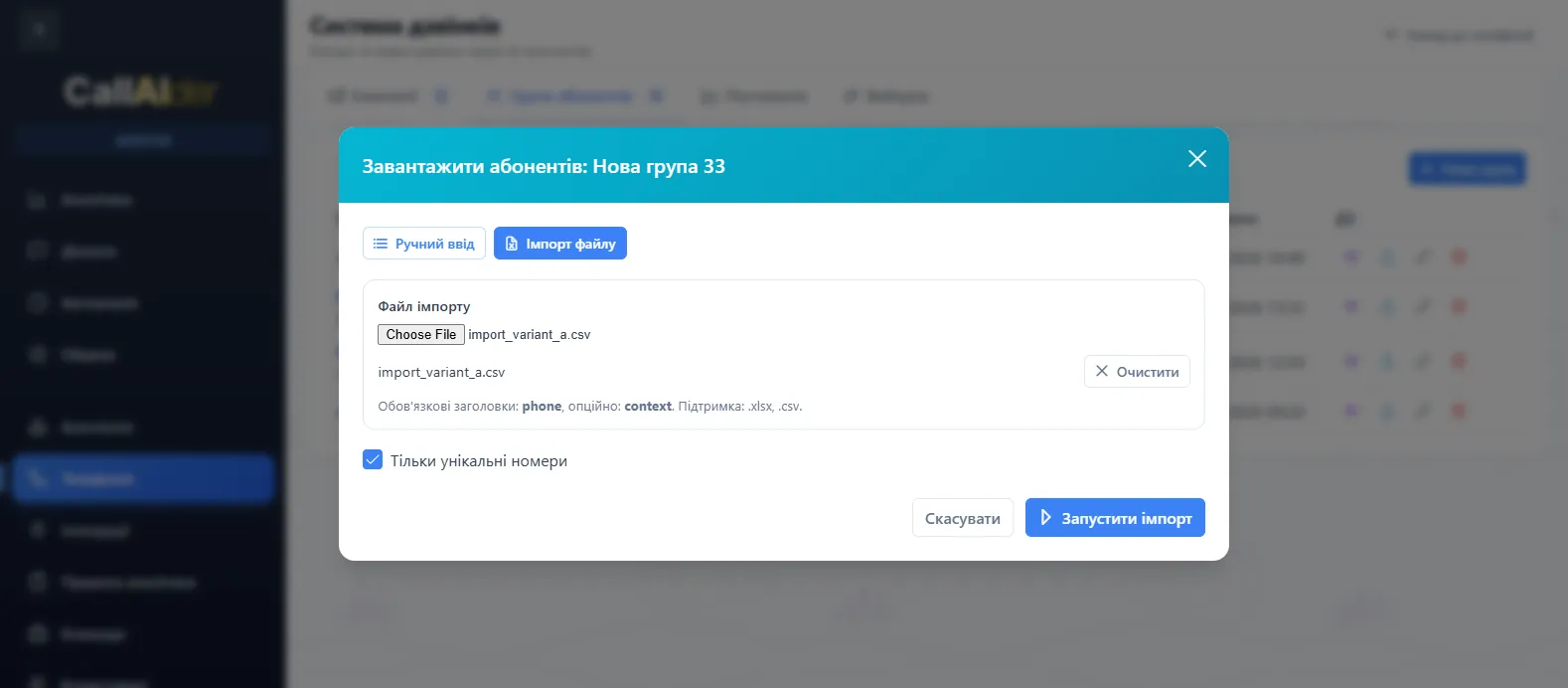
Unique Numbers Only Option
- Enabled: duplicates that already exist in the group are skipped.
- Disabled: the system attempts to process all rows (subject to validation).
This is useful for regular list updates where duplicate prevention matters.
What Happens After You Start
During processing, you will see import statuses. After completion, the modal shows detailed statistics.
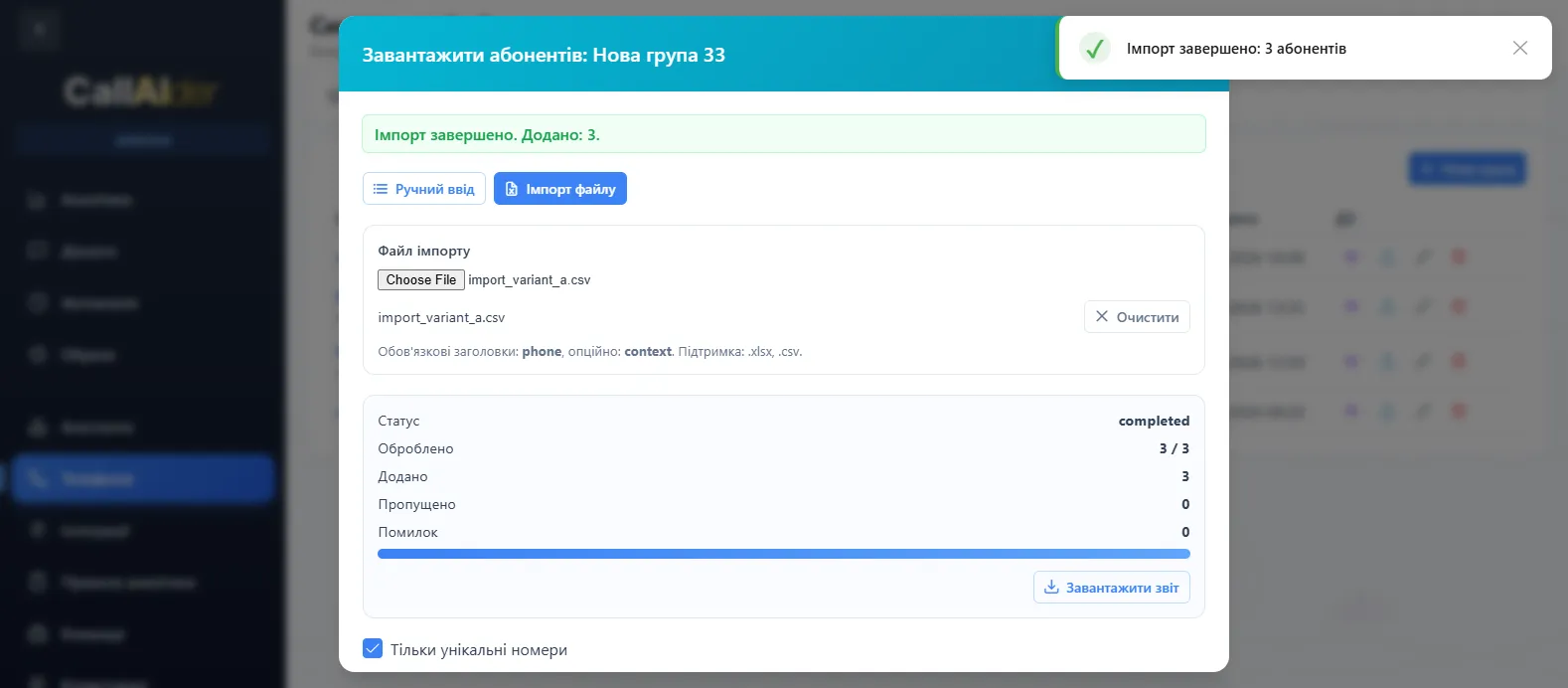
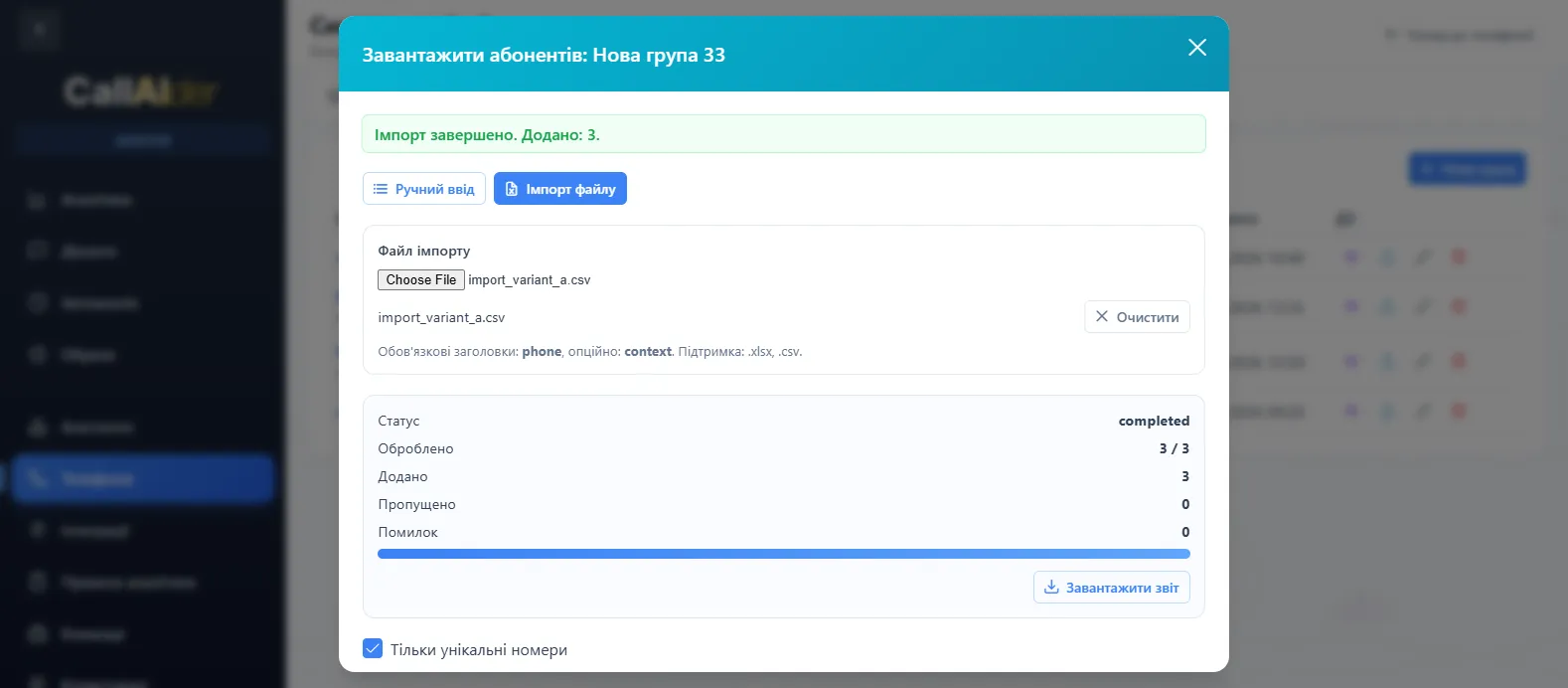
Key metrics:
- Processed (
processedRows / totalRows) - Added (
successfulRows) - Skipped (
skippedRows) - Failed (
failedRows)
Common Errors and Fixes
1. Header "phone" is required
Cause: the file does not include the phone column.
Fix: add a phone header to the first row.
2. invalid_phone
Cause: phone format did not pass validation.
Fix: verify number format and country code (for example, +380...).
3. duplicate_in_group
Cause: the number already exists in the group while unique mode is enabled.
Fix: keep unique mode on to skip duplicates, or disable it if your process allows duplicates.
4. CSV parse error
Cause: usually malformed JSON in context.
Fix: verify separators and quote escaping in the CSV file.
Verify Imported Data in Subscriber List
After the job finishes, open the subscriber list for the group and check the additional data column to confirm context values were saved correctly.
Pre-Import Checklist
- The
phonecolumn is present. contextis filled only when needed.- Numbers are in international format.
- CSV quote escaping is valid for JSON values.
- The correct subscriber group is selected.
- The Unique numbers only option is set correctly.
With this checklist, you can run imports confidently and keep subscriber groups clean and ready for campaigns in CallAIder.