
If the CallAIder assistant widget is already installed on your website, you can quickly start tracking key interactions in GA4: widget open/close, session start, user messages, and assistant replies.
This article is a practical guide without extra theory: what exactly the widget emits, what code to place on your site, and how to confirm that events are actually reaching analytics.
What the Widget Sends in the Browser
The widget dispatches events to window as CustomEvent:
- browser event name:
callaider_widget_event - main payload is inside
event.detail
The base structure looks like this:
{
  eventName: 'callaider_chat_open',
  params: {
    assistant_shortcode: 'abc123',
    chat_mode: 'text'
  }
}
Which Events You Will Get
| Event | Text widget | Voice widget | Meaning |
|---|---|---|---|
callaider_chat_open | yes | yes | User opened the widget |
callaider_chat_close | yes | yes | User closed the widget |
callaider_session_started | yes | yes | Session was started/resumed |
callaider_session_ended | yes | yes | Session was ended |
callaider_message_sent | yes | no | User sent a message |
callaider_message_received | yes | no | Assistant sent a reply |
Important: in voice mode (chat_mode = voice), callaider_message_sent and callaider_message_received are not emitted.
Where to Place the Code on Your Site
Recommended order in HTML:
- GA4 (
gtag) initialization or GTM container. - Your
callaider_widget_eventlistener. - CallAIder widget embed script.
This helps you avoid missing early events that can fire right after widget initialization.
Step 1. Check Events in Console
First, verify that the browser actually receives events:
<script>
window.addEventListener('callaider_widget_event', function (e) {
  console.log('[Callaider Event]', e.detail);
});
</script>
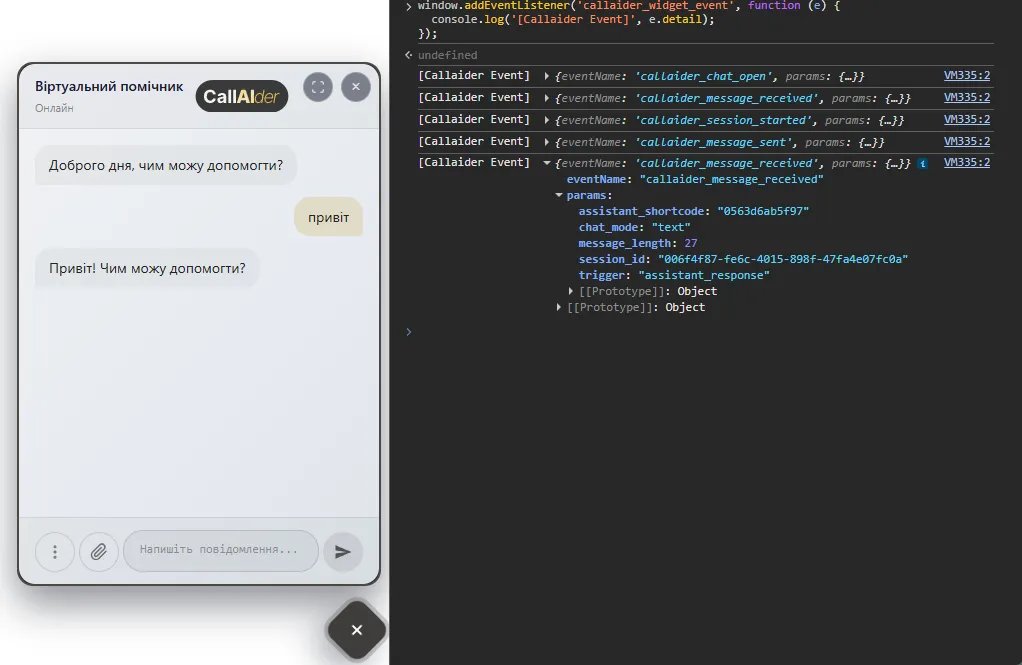
After opening the widget, you should see objects in Console like:
eventName: 'callaider_chat_open'eventName: 'callaider_session_started'eventName: 'callaider_message_sent'eventName: 'callaider_message_received'
Step 2. Send Events to GA4 via gtag
If gtag is already installed, this listener is enough:
<script>
window.addEventListener('callaider_widget_event', function (e) {
  var d = e.detail || {};
  if (!d.eventName) return;

  if (typeof window.gtag === 'function') {
    window.gtag('event', d.eventName, d.params || {});
  }
});
</script>
What GA4 receives:
- event name from
d.eventName - parameters from
d.params(for example:assistant_shortcode,chat_mode,session_id,trigger)
Step 3. Or Send Events via GTM (dataLayer)
If you use Google Tag Manager:
<script>
window.dataLayer = window.dataLayer || [];

window.addEventListener('callaider_widget_event', function (e) {
  var d = e.detail || {};
  if (!d.eventName) return;

  window.dataLayer.push(Object.assign({
    event: d.eventName
  }, d.params || {}));
});
</script>
Then in GTM you can create:
- a Custom Event trigger for
callaider_*events - a GA4 Event tag that takes event name from
{{Event}} - mapping for required event parameters in GA4 Event Parameters
Detailed Data Set in params for Each Event
Below is the exact payload structure you should expect in event.detail.params.
Base fields that appear in most events:
assistant_shortcode(string) - assistant shortcodechat_mode(textorvoice) - widget modetrigger(string) - what caused the event
1) callaider_chat_open
| Field | Type | Required | Notes |
|---|---|---|---|
assistant_shortcode | string | yes | Assistant identifier |
chat_mode | text | voice | yes | Widget mode |
trigger | string | yes | For example launcher_button, auto_open, api |
Example:
{
  "eventName": "callaider_chat_open",
  "params": {
    "assistant_shortcode": "abc123",
    "chat_mode": "text",
    "trigger": "launcher_button"
  }
}
2) callaider_chat_close
| Field | Type | Required | Notes |
|---|---|---|---|
assistant_shortcode | string | yes | Assistant identifier |
chat_mode | text | voice | yes | Widget mode |
trigger | string | yes | For example close_button, widget_closed, api |
Example:
{
  "eventName": "callaider_chat_close",
  "params": {
    "assistant_shortcode": "abc123",
    "chat_mode": "voice",
    "trigger": "close_button"
  }
}
3) callaider_session_started
| Field | Type | Required | Notes |
|---|---|---|---|
assistant_shortcode | string | yes | Assistant identifier |
chat_mode | text | voice | yes | Widget mode |
session_id | string | null | yes | Session ID |
trigger | string | yes | For example socket_ready, server_event |
session_action | started | resumed | no | Usually present in text mode |
Example:
{
  "eventName": "callaider_session_started",
  "params": {
    "assistant_shortcode": "abc123",
    "chat_mode": "text",
    "session_id": "8d6c...",
    "trigger": "socket_ready",
    "session_action": "started"
  }
}
4) callaider_session_ended
| Field | Type | Required | Notes |
|---|---|---|---|
assistant_shortcode | string | yes | Assistant identifier |
chat_mode | text | voice | yes | Widget mode |
session_id | string | null | yes | Session ID |
close_reason | string | yes | End reason, e.g. user_ended |
trigger | string | yes | For example client, socket_disconnect, session_error |
Example:
{
  "eventName": "callaider_session_ended",
  "params": {
    "assistant_shortcode": "abc123",
    "chat_mode": "text",
    "session_id": "8d6c...",
    "close_reason": "user_ended",
    "trigger": "client"
  }
}
5) callaider_message_sent (text only)
| Field | Type | Required | Notes |
|---|---|---|---|
assistant_shortcode | string | yes | Assistant identifier |
chat_mode | text | yes | Always text for this event |
session_id | string | null | yes | Session ID |
trigger | string | yes | Usually user_send |
message_length | number | yes | Length of user’s text message |
files_count | number | yes | Number of attached files |
message_type | text_only | files_only | text_and_files | yes | Message type |
Example:
{
  "eventName": "callaider_message_sent",
  "params": {
    "assistant_shortcode": "abc123",
    "chat_mode": "text",
    "session_id": "8d6c...",
    "trigger": "user_send",
    "message_length": 25,
    "files_count": 0,
    "message_type": "text_only"
  }
}
6) callaider_message_received (text only)
| Field | Type | Required | Notes |
|---|---|---|---|
assistant_shortcode | string | yes | Assistant identifier |
chat_mode | text | yes | Always text for this event |
session_id | string | null | yes | Session ID |
trigger | string | yes | Usually assistant_response |
message_length | number | yes | Length of assistant reply |
Example:
{
  "eventName": "callaider_message_received",
  "params": {
    "assistant_shortcode": "0563d6ab5f97",
    "chat_mode": "text",
    "session_id": "006f4f87-fe6c-4015-898f-47fa4e07fc0a",
    "trigger": "assistant_response",
    "message_length": 27
  }
}
Typical trigger Values
Depending on the scenario, common values include:
launcher_buttonclose_buttonauto_openapiiframe_requestsocket_readyclientserver_eventnew_conversationuser_sendassistant_responsewidget_closedsocket_disconnectsession_errorconnect_error
Quick Pre-Launch Checklist
callaider_widget_eventis visible in Console.- Listener is connected before the widget embed script.
gtagor GTM container loads without errors.- Events are visible in GA4 DebugView.
- Reports include at least
callaider_chat_openandcallaider_session_started.
Common Issues and Fixes
No events in Console
Most often, the listener is added too late or the script fails due to a JavaScript error. Check script order and Console errors.
Events are in Console but not in GA4
Usually one of these causes:
gtagis not initialized on the page,- tracking is blocked (consent/adblock),
- GTM trigger/tag setup is incorrect.
You have chat_open but no message_*
This is expected in voice mode. Message events are emitted only for chat_mode = text.
Conclusion
Integrating assistant widget events with GA4 takes only a few minutes, but immediately gives you measurable visibility: how many users open the widget, start sessions, send messages, and receive replies.
As a starting point, one listener and 2-3 target events in reports are enough. Then you can gradually add segments, conversions, and comparisons across different assistants.