
Webhook delivery in CallAIder lets you automatically send dialog analytics results to an external system: CRM, BI dashboard, helpdesk, internal workspace, quality control tool, or any other service that can receive HTTP requests.
This is useful when analytics results should not remain only inside the CallAIder interface. For example, you can automatically create a task for a team lead when a call needs attention, update a customer card in CRM, send quality scores to BI, or store a full history of reviews in your own database.
In this guide, we will cover:
- where result delivery is enabled;
- how to configure conditions so only relevant dialogs are sent;
- which webhook settings need to be filled in;
- what JSON your system will receive;
- how to verify the request signature;
- how to avoid duplicates during retries;
- how to test the integration before launch.
When to use webhook delivery
Use webhook delivery when an action should happen in another system after a dialog is analyzed.
Common scenarios:
| Scenario | What webhook delivery can do |
|---|---|
| Quality control | Send problematic calls to a supervisor or operator quality system. |
| CRM | Update a customer card, deal, or request after the conversation is analyzed. |
| Helpdesk | Create a ticket when a customer is dissatisfied or the issue was not resolved. |
| BI and reporting | Collect scores, analytics fields, duration, and statuses in your own storage. |
| Internal workflows | Trigger automations: notifications, checks, routing, escalations. |
The main benefit is that data is sent automatically after analysis is completed. Your team does not need to export spreadsheets manually or check for new results on a schedule.
How delivery works
From the customer’s point of view, the flow is simple:
- A dialog enters CallAIder and is analyzed using an analytics rule.
- CallAIder checks whether result delivery is enabled for the team.
- If delivery conditions are configured, the result is checked against those conditions.
- If the conditions match, or if no conditions are configured, CallAIder sends an HTTP request to the URL specified in the webhook settings.
- Your system receives the JSON payload, processes it, and returns an HTTP
2xxstatus.
Webhook delivery does not block analytics. The analysis result is saved in CallAIder, and the request to your system is sent separately. Because of this, there may be a short delay between analysis completion and webhook arrival.
What to prepare before setup
Before enabling webhook delivery in CallAIder, prepare an endpoint in your system.
Minimum requirements:
- a public HTTPS URL available from the outside;
- support for JSON request bodies;
- a fast
2xxresponse when the payload is accepted; - duplicate-safe handling of repeated requests;
- request logging during the testing stage.
Also decide in advance which results should be sent:
- all analytics results for the team;
- only dialogs with a low score;
- only results that require attention;
- only dialogs where a specific analytics field has a specific value;
- only calls with a certain direction, duration, operator, or other dialog property.
If your system uses authorization, prepare the token or secret that should be sent in an additional HTTP header.
Where delivery is configured
Delivery settings are located in the team creation or editing wizard, on the Delivery step.
This step contains three main sections:
| Section | Purpose |
|---|---|
| Delivery conditions | Define which analytics results should be sent to the external system. |
| Webhook | Configure the HTTP request: URL, method, signature, retry count, headers, and payload options. |
| Email and Telegram | Future delivery channels. They are visible in the interface but do not send results yet. |
For webhook delivery to work, enable general result delivery at the top of the Delivery step and then enable the Webhook channel separately.
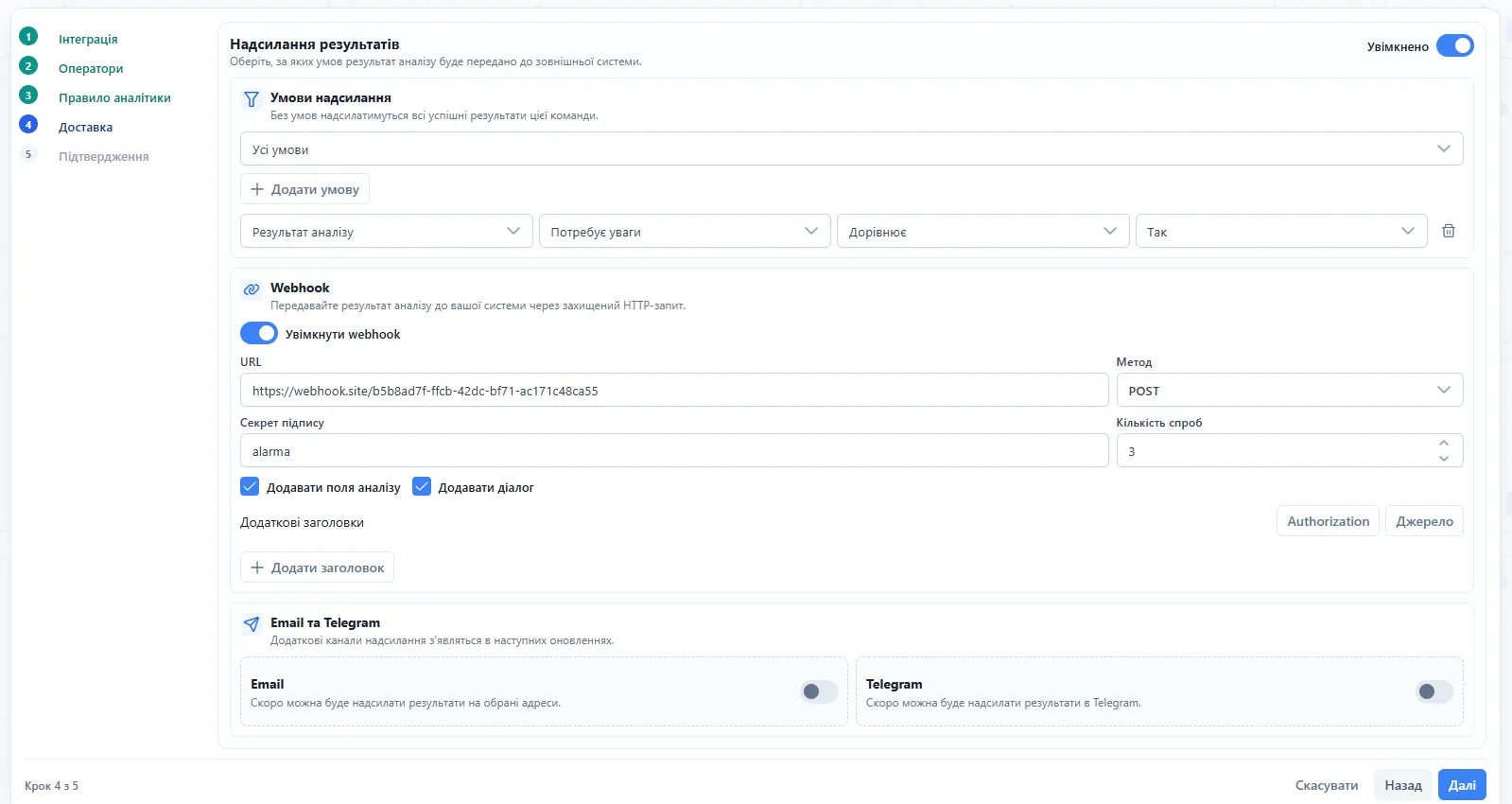
Step 1. Enable result delivery
At the top of the Delivery step, turn on result delivery.
This switch controls delivery for the whole team. If it is disabled, webhook requests will not be sent even if the Webhook section has a URL configured.
After that, move to delivery conditions.
Step 2. Configure delivery conditions
Conditions let you send only the analytics results that matter for your process instead of sending everything.
If no conditions are configured, CallAIder will send all successful analytics results for this team.
This is a good option if you want to keep a full copy of results in your own system or build complete BI reporting.
If the webhook is meant to trigger actions only in specific situations, add conditions. For example:
Needs attention = Yes;Total score < 7;Task completed = No;Duration > 180;Direction = incoming.
Condition matching mode
In the conditions section, you can select the matching mode:
| Mode | How it works |
|---|---|
| All conditions | Webhook is sent only when all added conditions match. |
| Any condition | Webhook is sent when at least one added condition matches. |
Example for All conditions:
Needs attention = Yes;Total score < 7.
In this case, webhook will be sent only for results that both need attention and have a total score below 7.
Example for Any condition:
Needs attention = Yes;Total score < 7.
In this case, webhook will be sent if the result either needs attention or has a low score. This is a broader selection.
Data sources for conditions
A condition consists of a data source, field, operator, and value.
| Source | What can be checked | Example |
|---|---|---|
| Analytics result | Total score, score, penalty score, attention flag, quality limit flag. | Needs attention = Yes, Total score < 7 |
| Analytics field | Dynamic fields configured in the analytics rule. | Task completed = No, Target = Yes |
| Dialog data | Call or dialog data: duration, client, operator, direction, and similar fields. | Duration > 180, Direction = incoming |
The Analytics field source is especially useful when your analytics rule contains business fields: task status, contact reason, customer intent, consultation result, sale presence, churn risk, and similar values.
Condition operators
Available operators depend on the field type, but the most common ones are:
| Operator | Example |
|---|---|
| Equals | Needs attention = Yes |
| Does not equal | Task completed != Yes |
| Greater than | Total score > 8 |
| Greater than or equal to | Duration >= 60 |
| Less than | Total score < 7 |
| Less than or equal to | Penalty score <= 1 |
| Exists | Client email exists |
| Does not exist | Client email does not exist |
| Contains | Client name contains "LLC" |
Step 3. Enable webhook
In the Webhook section, turn on Enable webhook.
Then fill in the HTTP request settings.
| Field | What to enter |
|---|---|
| URL | The endpoint in your system where CallAIder should send JSON. |
| Method | HTTP method: POST, PUT, or PATCH. In most cases, use POST. |
| Signature secret | Optional secret used to verify that the request really came from CallAIder. |
| Retry count | How many times CallAIder should retry delivery if the endpoint returns an error or does not respond. |
| Include analytics fields | Adds data.result.fields with dynamic analytics rule fields to the payload. |
| Include dialog | Adds data.result.transcript with a structured dialog transcript to the payload. |
| Additional headers | Lets you send custom HTTP headers, for example Authorization. |
Recommended starting setup:
- method:
POST; - retry count:
3; - signature secret: enable it for production endpoints;
- Include analytics fields: enable it if you need custom analytics field values;
- Include dialog: enable it only if the external system really needs the transcript.
The transcript can significantly increase payload size. If you only need scores, statuses, and short analytics fields, keep Include dialog disabled.
Step 4. Add authorization headers
If your endpoint is protected by a token, add it in Additional headers.
For example:
Authorization: Bearer <token>Or, if your system uses a custom header:
X-Api-Key: <api-key>Do not use additional headers to override CallAIder system headers. Headers such as Content-Type, X-Callaider-Event, X-Callaider-Signature, X-Callaider-Delivery-Id, and Idempotency-Key are generated by the platform.
Step 5. Save the team and run a test analysis
After filling in the settings, save the team.
To test delivery, run a test analysis or wait for a new dialog that matches the analytics rule and delivery conditions.
During testing, it is convenient to use a temporary endpoint such as webhook.site. This lets you see:
- whether the request arrives;
- which HTTP method was used;
- which headers were sent;
- what JSON was generated;
- whether the signature is present;
- whether additional headers were included.
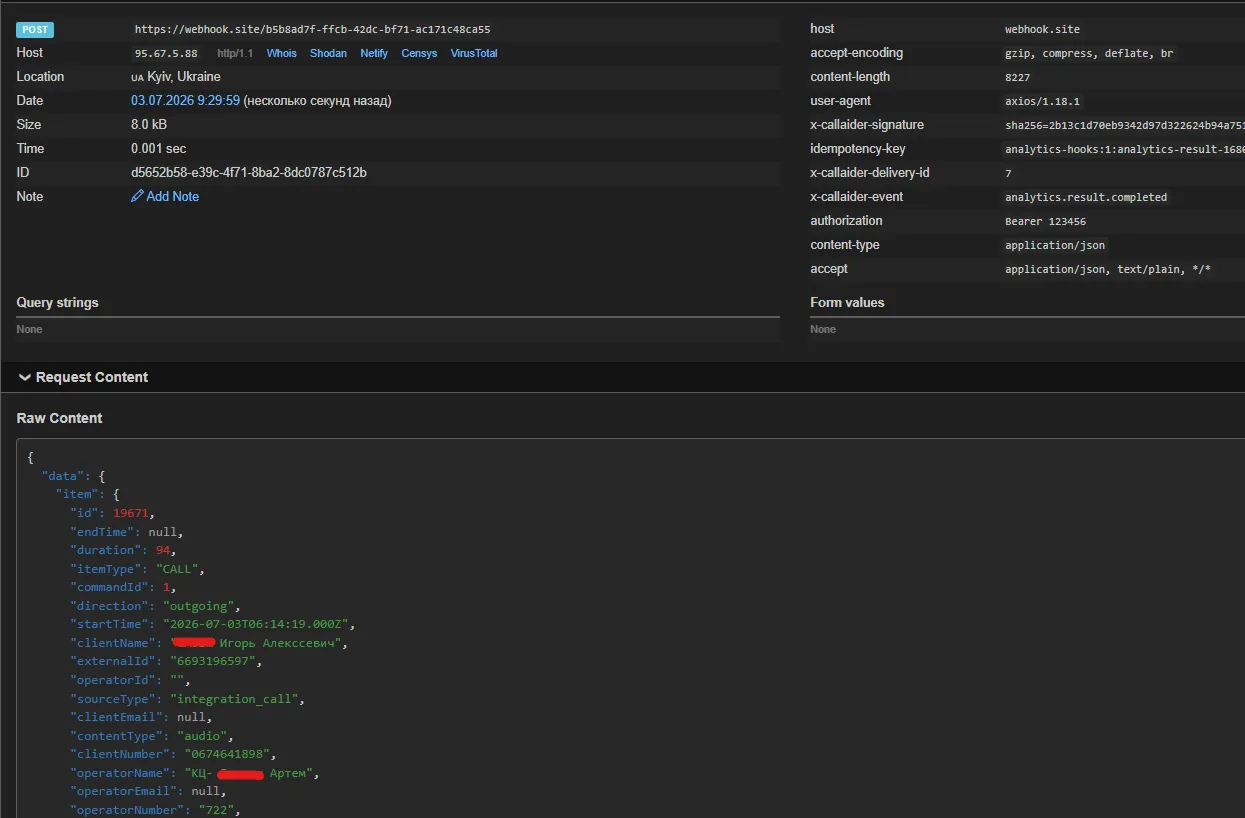
After verification, replace the test URL with your production endpoint.
What counts as successful delivery
Webhook delivery is considered successful when your endpoint returns an HTTP 2xx status, for example:
200 OK;201 Created;202 Accepted;204 No Content.
If the endpoint returns 4xx, 5xx, does not respond, or takes too long to respond, CallAIder may retry delivery according to the configured retry count.
Because of this, your endpoint should be ready for repeated requests. This is a normal part of reliable delivery.
How your endpoint should behave
Recommendations for a stable integration:
- Accept the request body as JSON.
- Verify authorization or signature if you use them.
- Store
Idempotency-Keyto avoid duplicates. - Return
2xxwhen the payload is accepted. - Run heavy processing asynchronously on your side.
- Log
eventId,resultId,data.analyzableItemId, andX-Callaider-Delivery-Idfor diagnostics. - Do not write secrets, tokens, or full personal data to open logs.
A simple rule: the endpoint should quickly accept the event, confirm receipt, and then run longer business logic inside your own system.
Webhook system headers
CallAIder sends webhook requests with a JSON body and system headers.
| Header | Description |
|---|---|
Content-Type | Always application/json. |
X-Callaider-Event | Event type. For analytics results: analytics.result.completed. |
X-Callaider-Delivery-Id | ID of the concrete delivery attempt. Useful for technical logs. |
Idempotency-Key | Stable key used to prevent duplicates during retries. |
X-Callaider-Signature | HMAC signature of the request body. Sent only when a signature secret is configured. |
Additional headers configured in webhook settings will also be sent with the request.
Payload format
The request body is always sent as JSON.
General structure:
{
  "event": "analytics.result.completed",
  "timestamp": "2026-07-03T06:27:55.693Z",
  "eventId": "analytics-result-1678",
  "companyId": 1,
  "commandId": 1,
  "ruleItemId": 1,
  "resultId": 1678,
  "data": {
    "eventId": "analytics-result-1678",
    "occurredAt": "2026-07-03T03:27:54.832Z",
    "companyId": 1,
    "commandId": 1,
    "ruleItemId": 1,
    "taskId": 427,
    "analyzableItemId": 19668,
    "result": {},
    "item": {}
  }
}
Top-level payload fields
| Field | Type | Meaning |
|---|---|---|
event | string | Event type. For this webhook: analytics.result.completed. |
timestamp | string | Time when the webhook request was created. |
eventId | string | Analytics result event ID. Useful for logging. |
companyId | number | Company ID in CallAIder. |
commandId | number | null | ID of the team this result belongs to. |
ruleItemId | number | null | ID of the analytics rule used for analysis. |
resultId | number | ID of the concrete analytics result. |
data | object | Main event data: analytics result and dialog data. |
Dialog ID vs result ID
For integrations, it is important not to confuse the dialog with the analytics result.
| Identifier | Meaning | How to use it |
|---|---|---|
data.analyzableItemId | Main ID of the dialog or other object that was analyzed. | Use it as the dialog ID in your system. |
data.item.id | Object ID in the dialog details block. | Usually equals data.analyzableItemId. |
resultId / data.result.id | ID of the concrete analytics result. | Use it as the ID of a separate review or analysis version. |
eventId | ID of the result delivery event. | Useful for logging and technical event deduplication. |
The same dialog can be analyzed more than once. In that case, data.analyzableItemId stays the same, while resultId and data.result.id will be different.
Recommended storage model in your system:
- store or update the dialog by
data.analyzableItemId; - store analytics results as separate records by
data.result.id; - determine the current result by
data.result.analyzedAtor your own business logic.
Do not use resultId as the only dialog ID. It is the analytics result ID, not the dialog ID.
data.result block
data.result contains the analytics result.
| Field | Type | Meaning |
|---|---|---|
id | number | ID of the concrete analytics result. |
score | number | string | null | Main score. |
penaltyScore | number | string | null | Penalty score. |
totalScore | number | string | null | Final score. |
lessThanAcceptableLimit | boolean | Whether the result is below the acceptable quality limit. |
attention | boolean | Whether the result needs attention. |
scoringJustification | string | null | Explanation of score calculation. |
penaltyJustification | string | null | Explanation of penalties. |
analyzedAt | string | null | Time when analysis was completed. |
fields | array | Dynamic analytics rule fields. Present only if Include analytics fields is enabled. |
transcript | array | Structured dialog transcript. Present only if Include dialog is enabled. |
data.result.fields[] block
The fields array contains fields configured in the analytics rule.
Example:
{
  "name": "Task completed",
  "value": "true",
  "fieldKey": "field_105",
  "fieldType": "boolean",
  "aiJustification": "The operator successfully rescheduled the client's appointment to another date and time."
}| Field | Type | Meaning |
|---|---|---|
name | string | Field name visible to the CallAIder user. |
value | string | Value detected by analytics. For boolean fields, "true" or "false" is sent. |
fieldKey | string | null | Stable technical field key. Prefer it for mapping. |
fieldType | string | Field type, for example string, number, boolean. |
aiJustification | string | null | Explanation of why analytics detected this value. |
For integrations, it is better to map by fieldKey rather than by field name. The visible name can be changed in the interface, while the technical key is intended for stable mapping.
data.result.transcript[] block
If Include dialog is enabled, the payload will include a structured transcript.
Example:
{
  "text": "Good afternoon, my name is Artem...",
  "speaker": "operator",
  "timestamp": "00:00",
  "speakerName": "Operator"
}| Field | Type | Meaning |
|---|---|---|
text | string | Phrase from the dialog. |
speaker | string | Participant role, for example operator or client. |
timestamp | string | Phrase timestamp within the dialog. |
speakerName | string | null | Participant name, if detected. |
Enable transcript delivery only when it is required for your scenario. For many integrations, scores, analytics fields, and dialog metadata are enough.
data.item block
data.item contains information about the call or other object that was analyzed.
| Field | Type | Meaning |
|---|---|---|
id | number | Object ID in CallAIder. Usually equals data.analyzableItemId. |
itemType | string | Object type, for example CALL. |
sourceType | string | Object source, for example integration_call. |
contentType | string | null | Content type, for example audio. |
commandId | number | null | Team ID. |
externalId | string | null | ID in an external system or provider. |
clientNumber | string | null | Client phone number. |
clientName | string | null | Client name. |
clientEmail | string | null | Client email. |
operatorNumber | string | null | Operator number. |
operatorId | string | null | Operator ID in the external system. |
operatorName | string | null | Operator name. |
operatorEmail | string | null | Operator email. |
direction | string | null | Call direction, for example incoming or outgoing. |
startTime | string | null | Start time. |
endTime | string | null | End time. |
duration | number | null | Duration in seconds. |
providerProperties | object | null | Additional provider or integration data. |
Short payload example
Below is an example webhook payload. Personal data in the example is anonymized.
{
  "event": "analytics.result.completed",
  "eventId": "analytics-result-1678",
  "resultId": 1678,
  "commandId": 1,
  "companyId": 1,
  "timestamp": "2026-07-03T06:27:55.693Z",
  "data": {
    "eventId": "analytics-result-1678",
    "occurredAt": "2026-07-03T03:27:54.832Z",
    "companyId": 1,
    "commandId": 1,
    "ruleItemId": 1,
    "taskId": 427,
    "analyzableItemId": 19668,
    "result": {
      "id": 1678,
      "score": 2.1,
      "totalScore": 2.1,
      "penaltyScore": 0,
      "attention": true,
      "lessThanAcceptableLimit": false,
      "analyzedAt": "2026-07-03T03:27:54.832Z",
      "scoringJustification": "The operator completed the main conversation stages...",
      "penaltyJustification": "",
      "fields": [
        {
          "name": "Client name",
          "value": "Artem",
          "fieldKey": "field_488",
          "fieldType": "string",
          "aiJustification": "The client introduced himself at the beginning of the conversation."
        },
        {
          "name": "Task completed",
          "value": "true",
          "fieldKey": "field_105",
          "fieldType": "boolean",
          "aiJustification": "The operator successfully rescheduled the client's appointment."
        }
      ],
      "transcript": [
        {
          "text": "Good afternoon, my name is Artem...",
          "speaker": "operator",
          "timestamp": "00:00",
          "speakerName": "Operator"
        }
      ]
    },
    "item": {
      "id": 19668,
      "itemType": "CALL",
      "sourceType": "integration_call",
      "contentType": "audio",
      "commandId": 1,
      "externalId": "6693228761",
      "clientNumber": "050***8290",
      "clientName": "",
      "clientEmail": null,
      "operatorNumber": "722",
      "operatorId": "",
      "operatorName": "Operator",
      "operatorEmail": null,
      "direction": "incoming",
      "startTime": "2026-07-03T06:22:52.000Z",
      "endTime": null,
      "duration": 83,
      "providerProperties": null
    }
  }
}
Signature verification
If Signature secret is configured in webhook settings, CallAIder will add this header:
X-Callaider-Signature: sha256=<hex-hmac>The signature is generated as HMAC-SHA256 from the raw HTTP request body.
This allows your system to verify that the payload was not changed and that the request was generated using a secret known only to you and CallAIder.
Node.js verification example:
import crypto from 'crypto';

function verifyCallaiderSignature(
  rawBody: string,
  receivedSignature: string | undefined,
  secret: string,
): boolean {
  if (!receivedSignature) {
    return false;
  }

  const expectedSignature =
    'sha256=' +
    crypto.createHmac('sha256', secret).update(rawBody).digest('hex');

  const received = Buffer.from(receivedSignature);
  const expected = Buffer.from(expectedSignature);

  return (
    received.length === expected.length &&
    crypto.timingSafeEqual(received, expected)
  );
}
Important: verify the signature against the raw HTTP request body. Do not verify it against a parsed and re-serialized JSON object, because even a small formatting change will change the HMAC.
Idempotency and retries
A webhook can arrive more than once if a previous attempt was not confirmed with a successful response. For example, the endpoint temporarily returned 500, the request timed out, or the connection was interrupted.
To avoid duplicates:
- Store the
Idempotency-Keyheader value. - If a request with the same key has already been processed successfully, do not create a duplicate record.
- For a repeated request that does not need new processing, return
2xx.
You can also log eventId, resultId, and X-Callaider-Delivery-Id, but Idempotency-Key is the best key for preventing duplicates of the same delivery.
Also account for repeated analysis of the same dialog:
- if you need to update a dialog card, find it by
data.analyzableItemId; - if you need to keep analysis history, create a separate record for each
data.result.id; - do not use
resultIdas the only dialog identifier.
Practical setup scenarios
Send all analytics results for a team
Use this scenario when your system needs a full copy of analytics results.
Settings:
- general result delivery is enabled;
- webhook is enabled;
- URL is filled in;
- no conditions are configured;
- Include analytics fields is enabled if needed.
Result: CallAIder will send all successful analytics results for this team.
Send only problematic calls
Use this scenario for quality control, escalations, and supervisor tasks.
Settings:
- condition mode: Any condition;
- condition 1:
Needs attention = Yes; - condition 2:
Total score < 7.
Result: webhook will arrive for calls that need attention or have a low score.
Send only calls where the task was not completed
Use this scenario when your analytics rule has a field that defines conversation outcome.
Settings:
- source: Analytics field;
- field:
Task completed; - operator:
Equals; - value:
No.
Result: webhook will arrive only when analytics determines that the task was not completed.
Send only long inbound calls with a low score
Use this scenario when you need to review complex or potentially problematic requests.
Settings:
- condition mode: All conditions;
- condition 1:
Direction = incoming; - condition 2:
Duration > 180; - condition 3:
Total score < 7.
Result: webhook will arrive only for inbound calls longer than three minutes with a result below the required level.
Common issues and checks
Webhook does not arrive
Check:
- whether general result delivery is enabled on the Delivery step;
- whether the Webhook switch is enabled;
- whether the URL is correct;
- whether the endpoint is publicly reachable;
- whether the analytics result actually matches delivery conditions;
- whether the endpoint returns an error or times out.
For diagnostics, temporarily remove conditions or use a test endpoint to confirm that requests are being generated.
Payload does not contain analytics fields
Check whether Include analytics fields is enabled.
Also make sure the analytics rule has dynamic fields configured that should appear in data.result.fields.
Payload does not contain transcript
Check whether Include dialog is enabled.
If transcript is not required for your process, keep this option disabled so the payload remains smaller.
Endpoint returns 401 or 403
Check:
- whether the required
AuthorizationorX-Api-Keyheader is configured; - whether the token contains extra spaces;
- whether your system expects a different header name;
- whether firewall or reverse proxy rules block the request.
Signature does not match
Most common causes:
- wrong secret is used;
- signature is checked against something other than the raw request body;
- middleware parses JSON before signature verification and changes the body format;
- code uses a different encoding or algorithm.
HMAC verification requires the raw body received before any transformation.
Duplicates appear in the external system
Check whether you store Idempotency-Key and whether you avoid creating a new record for a key that has already been processed.
If dialogs and analytics results are stored separately, make sure that:
- the dialog is identified by
data.analyzableItemId; - the analytics result is identified by
data.result.id; - repeated delivery does not create a duplicate of the same event.
Recommended launch checklist
- Prepare an HTTPS endpoint in your system.
- Make sure the endpoint accepts JSON and returns
2xx. - Add authorization or signature verification.
- Open the team creation or editing wizard.
- Go to the Delivery step.
- Enable result delivery.
- Add conditions or leave the list empty to send all results.
- Enable Webhook.
- Enter the endpoint URL.
- Select the method, usually
POST. - Add
Authorizationor other headers if needed. - Set a signature secret if needed.
- Choose whether to include analytics fields and dialog transcript.
- Save the team.
- Run a test analysis and verify that the request is received.
- Confirm that repeated requests do not create duplicates.
- Replace the test endpoint with the production URL if you tested through an external service.
Current limitations
- Result delivery is currently implemented through webhook.
- Email and Telegram are visible in the form as future delivery channels, but they do not send results yet.
- Delivery is asynchronous, so the webhook may arrive with a short delay after analysis completion.
- Delivery is considered successful only when your endpoint returns a
2xxstatus.
A correctly configured webhook turns dialog analytics from a separate report into part of your operational workflow. CallAIder identifies important results, and your system immediately receives structured data for CRM, reporting, quality control, or automation of next steps.