
External Conversation Bridge is a way to connect a CallAIder text assistant to your own communication channel via API. The channel can be a Telegram bot, WhatsApp, Instagram, Viber, a CRM chat, a mobile app chat, your own operator interface, or any other system that can receive user messages and make HTTP requests from the backend.
The core idea is simple: CallAIder does not take your messenger tokens and does not control message delivery in your channel. Your application receives a user message, sends the text and context to CallAIder, receives the assistant response, and delivers it back to the user on its own.
This guide is written for two audiences:
- platform clients who need to understand what must be configured in the CallAIder account;
- client integration developers who will implement the bridge server, payload, retry, handoff, and response delivery into the external channel.
When to use External Conversation Bridge
Use the external API channel when you already have your own customer contact point and want to connect an AI assistant to it without moving the channel inside CallAIder.
Typical scenarios:
- your Telegram bot is already running in production and has its own commands, menus, group rules, and forum topics;
- your CRM already receives messages from the website, messengers, or support forms;
- operators work in your own interface, and AI should respond only until handoff;
- you need to connect an assistant to a channel that does not have a ready-made native connector in CallAIder;
- you do not want to pass Telegram, WhatsApp, Instagram, Viber, or other external platform tokens to CallAIder.
In this mode, CallAIder works as a text assistant for your channel: it receives inbound text, maintains the conversation context, processes attachments when needed, generates a text response, and returns it to your application.
What stays on your side
External Conversation Bridge is not a ready-made adapter for a specific messenger. Keep this in mind before development starts.
The client application remains responsible for:
- receiving messages from the external channel;
- storing Telegram, WhatsApp, CRM, or other system tokens;
- webhooks, polling, group topics, routing, and channel logic;
- converting an inbound message into a CallAIder payload;
- sending CallAIder responses back to the user;
- operator handoff;
- retry, timeouts, queues, and rate limiting;
- filtering messages that AI should not answer.
CallAIder is responsible for:
- API key validation;
- finding the assistant by
assistantId; - checking that the external API channel is enabled;
- creating or restoring the assistant conversation;
- storing message history for context;
- maintaining context by
externalConversationId; - generating the assistant response;
- blocking the response if the conversation is set to
pausedorblocked; - automatically starting a new request after
closedwhen the user writes again in the same conversation; - basic protection against reprocessing the latest
messageId.
Overall flow
In a production scenario, your backend or bridge server usually sits between your channel and CallAIder. It stores secrets and makes server-to-server requests.
User in an external channel
        |
        v
Your backend / bridge server
        |
        | POST /v1/assistants/:assistantId/external-conversations/messages
        | Authorization: Bearer cld_...
        v
CallAIder public API
        |
        v
CallAIder assistant
        |
        v
JSON response: messages[]
        |
        v
Your backend delivers messages[] to Telegram, CRM, website, or another channel
Do not call this API directly from the end user’s browser or a mobile application if the key can be extracted from client-side code. The API key must live only on the server side.
What to prepare before integration
Before writing code, make sure you have:
- An active assistant in CallAIder.
- Access to that assistant’s settings.
- The external API channel enabled for the assistant.
- The
assistantId, shown in the account asAPI bot identifier. - A company API key in the
cld_...format. - A backend service that will receive messages from your channel and call the CallAIder API.
- The public API base URL for your connection, for example
https://api.callaider.ai/v1.
If API access is not enabled in your tariff or agreement, contact your CallAIder manager or support team. A key may exist in the account, but API requests still need to pass the availability check for the corresponding company feature.
Step 1. Open the assistant channels tab
In your CallAIder account, open the assistant you want to edit. Then go to the Channels tab.
Path in the account:
Assistants -> Edit -> Channels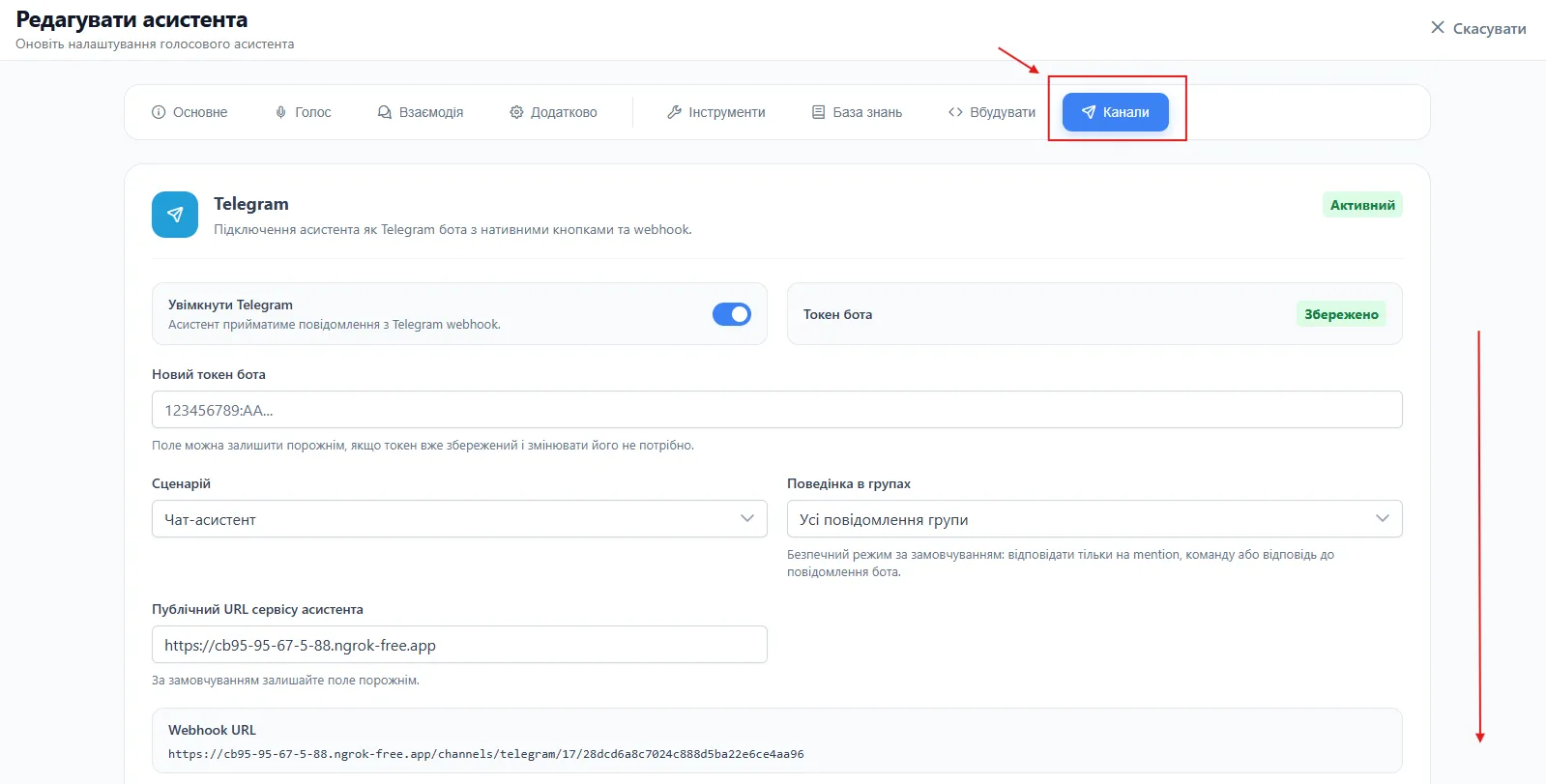
This page may contain different channels, for example Telegram and the external API channel. For an External Conversation Bridge integration, you need the External API channel block.
Step 2. Enable the external API channel
In the External API channel block, enable the Enable external API channel toggle and save the settings.
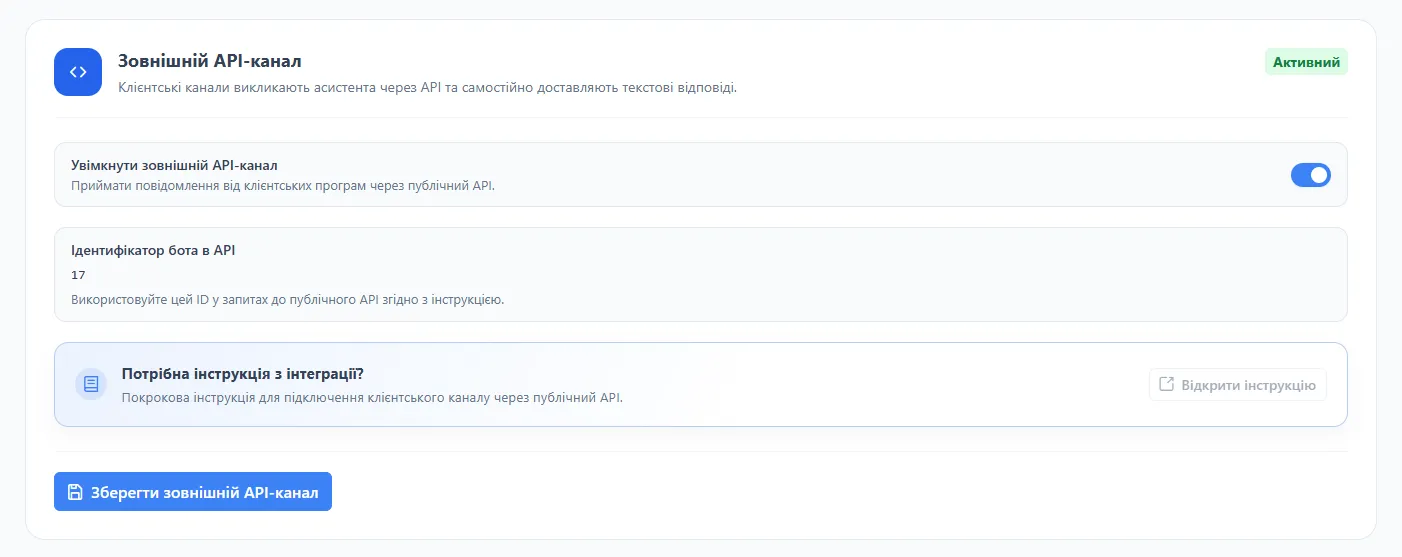
After saving, check two things:
- the block status is active;
- the
API bot identifierfield shows the assistant ID.
This ID is used in the API URL as assistantId.
Example:
POST /v1/assistants/17/external-conversations/messagesIn this example, 17 is the value from the API bot identifier field.
The public API base URL is not configured in this block. Take it from the documentation or from the CallAIder team for your connection. The examples below use the placeholder URL https://api.example.com/v1; replace it with the actual URL in a real integration.
Step 3. Create an API key for API access
The API key is required so CallAIder can verify that the request comes from your company. It is not a Telegram token, not a widget preview token, and not a user JWT. It is a separate company-level server-to-server key.
In the account, open the Integrations section and find the API keys block. Click Create key.

Recommended flow:
- Open
Integrations. - In the
API keysblock, clickCreate key. - Enter a clear name, for example
external-bridge-productionorcrm-chat-staging. - Copy the key in the
cld_...format. - Store the key in your backend service secrets.
- Do not add the key to frontend code, a mobile app, open logs, or a public repository.
Usually, after creation, the key is shown masked in the list. Copy the full value immediately during creation and pass it to the developer through a secure channel.
Example environment variables on your backend:
CALLAIDER_API_BASE_URL="https://api.callaider.ai/v1"
CALLAIDER_ASSISTANT_ID="17"
CALLAIDER_API_KEY="cld_xxxxxxxxxxxxxxxxxxxxxxxxxxxxxxxxxxxxxxxxxxxxxxxxxxxxxxxxxxxxxxxx"
Every HTTP request passes the key in the Authorization header:
Authorization: Bearer cld_xxxxxxxxxxxxxxxxxxxxxxxxxxxxxxxxxxxxxxxxxxxxxxxxxxxxxxxxxxxxxxxxThe public API OpenAPI specification is available in the NBM-Labs/callaider_openapi repository. It is useful for checking contracts, generating clients, and keeping backend development aligned with the current endpoints.
Message endpoint
The main endpoint receives the user’s inbound message and synchronously returns the assistant response.
POST /v1/assistants/:assistantId/external-conversations/messages
Authorization: Bearer <API_KEY>
Content-Type: application/json
The full URL consists of the base URL, assistant ID, and endpoint path:
https://api.example.com/v1/assistants/17/external-conversations/messagesThe endpoint works synchronously:
- receives the message;
- finds or creates a conversation by your
externalConversationId; - restores the context of this conversation;
- runs the assistant;
- waits for a response;
- returns
messages[].
Because of this, your HTTP client must have a sufficient timeout. For production integrations, plan for at least 30-60 seconds.
Minimal payload
The smallest valid request contains a stable conversation ID, the user ID in your channel, the message ID, and the text.
{
  "externalConversationId": "tg:123456",
  "externalUserId": "123456",
  "messageId": "789",
  "text": "Hello"
}
Example curl:
curl -X POST \
  "https://api.example.com/v1/assistants/17/external-conversations/messages" \
  -H "Content-Type: application/json" \
  -H "Authorization: Bearer <API_KEY>" \
  -d '{
    "externalConversationId": "tg:123456",
    "externalUserId": "123456",
    "messageId": "789",
    "text": "Hello"
  }'
Payload fields
| Field | Type | Required | Purpose |
|---|---|---|---|
externalConversationId | string | Yes | Stable conversation ID on your side. CallAIder restores context by this value. |
externalUserId | string | No | User ID in your external channel. Useful for audit and search. |
messageId | string | No, but recommended | Inbound message ID. Used to protect against repeated processing during retry. |
text | string | Yes, if there are no attachments | Text that will be passed to the assistant. |
attachments | array | No | Up to 5 attachments of the remote_url type. |
metadata | object | No | Additional JSON context for audit or integration. |
In practice, you should almost always pass messageId, even though the field is not strictly required. Without it, it is harder for your integration to safely repeat a request after a timeout or network error.
How to choose externalConversationId
externalConversationId is the conversation key. If it stays the same, CallAIder treats messages as part of the same context. If it changes, a different conversation is created.
Choose the ID depending on how assistant memory should work in your channel.
| Scenario | Example externalConversationId | Behavior |
|---|---|---|
| One conversation per Telegram user | tg:user:123456 | The assistant remembers the context of a specific user. |
| One conversation per Telegram chat | tg:chat:-1001234567890 | Context is shared for the chat. |
| Separate conversation per forum topic | tg:-1001234567890:topic:42 | Each topic has its own context. |
| One conversation per CRM ticket | crm:ticket:ABC-1001 | Context is tied to a CRM request. |
| One conversation per website chat | site:conversation:9f3a | Context is tied to a website request or chat. |
Different assistants can use the same externalConversationId without conflict, because context is tied to the combination:
assistantId + externalConversationIdDo not accidentally change externalConversationId between messages in the same conversation. If every message has a new ID, the assistant will not be able to restore the previous conversation context.
How to use messageId and retry
messageId must be a stable ID of the inbound message in your channel. If you repeat the same request because of a timeout, network error, or 5xx, use the same messageId.
Correct behavior:
- the user sends message
789; - your bridge server sends it to CallAIder with
messageId: "789"; - the request hangs or the response does not reach your server;
- the bridge server repeats the request with the same
messageId: "789"; - if CallAIder has already processed this message, the response contains
duplicate: trueand an emptymessages[].
Do not generate a new messageId for a retry of the same message. Otherwise, CallAIder will treat the retry as a new user message.
Duplicate protection is designed for a typical retry of the latest message in a specific conversation. For high-load integrations, you should still have your own idempotency or queue on the client bridge server side.
Full payload with metadata and attachment
When you need to pass additional context or a file, use metadata and attachments.
{
  "externalConversationId": "crm:ticket:ABC-1001",
  "externalUserId": "customer:555",
  "messageId": "crm-msg-9002",
  "text": "Please check this invoice",
  "attachments": [
    {
      "type": "remote_url",
      "url": "https://client.example.com/downloads/invoice-1001.pdf",
      "mimeType": "application/pdf",
      "filename": "invoice-1001.pdf",
      "sizeBytes": 245760,
      "sha256": "f2c7d0b4f4e8f1b7a12a4d34a9f6b7c0d1e2f3a4567890abcdef1234567890ab"
    }
  ],
  "metadata": {
    "source": "crm",
    "ticketId": "ABC-1001",
    "customerPlan": "business",
    "operatorQueue": "support-l2"
  }
}
metadata does not automatically control channel logic, but it helps with audit, tracing, and future integration logic. Pass only the technical and business context that is truly needed for your scenario.
Attachments via remote_url
External Conversation Bridge supports inbound attachments in the remote_url format. This means your application does not send the file itself inside JSON. Instead, it passes a short-lived HTTPS URL that the CallAIder backend can use to download the file while processing the message.
Format of one attachment:
{
  "type": "remote_url",
  "url": "https://client.example.com/files/photo.jpg",
  "mimeType": "image/jpeg",
  "filename": "photo.jpg",
  "sizeBytes": 734003,
  "sha256": "0123456789abcdef0123456789abcdef0123456789abcdef0123456789abcdef"
}
Attachment fields:
| Field | Type | Required | Description |
|---|---|---|---|
type | string | Yes | Currently only remote_url is supported. |
url | string | Yes | Public HTTPS URL available to the CallAIder backend during processing. |
mimeType | string | No, but recommended | Expected MIME type. Especially useful for signed URLs that return application/octet-stream. |
filename | string | No | File name that will be shown in the conversation history and during processing. |
sizeBytes | number | No | Expected file size. If it is larger than the limit, the request is rejected before download. |
sha256 | string | No | SHA-256 checksum. If passed, CallAIder verifies the file after download. |
Supported file types:
- images:
image/png,image/jpeg,image/webp,image/heic,image/heif,image/gif; - video:
video/mp4; - audio:
audio/wav,audio/x-wav,audio/wave,audio/mp3,audio/mpeg,audio/aiff,audio/x-aiff,audio/aac,audio/ogg,audio/flac; - documents:
application/pdf.
Current limits:
- up to 5 attachments in one message;
- up to 20 MB per file;
httpsonly;- no username/password in the URL;
- hostname must resolve to a public IP address;
- private, localhost, link-local, multicast, and service IP ranges are blocked;
- redirects are limited and checked again;
Content-Lengthand actual size are checked;- after download, the file is prepared for assistant analysis without another request to your URL.
Do not pass long-lived URLs with private secrets in the query string. It is better to use a short-lived signed URL or your own one-time download endpoint that lives long enough to process one message.
Successful message response
If the message is processed, the API returns ok: true, the current conversation status, and the messages array.
{
  "ok": true,
  "status": "active",
  "messages": [
    {
      "text": "Hello! How can I help?"
    }
  ]
}
messages is an array of text responses that your application must deliver into its channel in the same order. In most scenarios there will be one item, but the contract uses an array from the start so future scenarios with multiple responses do not require a format change.
CallAIder does not deliver these messages to Telegram, CRM, or a messenger on its own. Delivery is always on your side.
Response to a duplicate message
If messageId matches the latest processed inbound message in this conversation, generation is not run again.
{
  "ok": true,
  "status": "active",
  "duplicate": true,
  "messages": []
}
For your application, this means: do not deliver anything to the user. This response is normal for retry if the previous request has already been processed.
Response when AI is paused
If the conversation has the paused or blocked status, the assistant does not answer new messages.
{
  "ok": true,
  "status": "paused",
  "skipped": true,
  "messages": []
}
This is useful for operator handoff. For example, an operator takes over the conversation, your application moves the conversation to paused, and all subsequent user messages can still enter the system, but AI does not interfere.
Closed conversation and a new request
The closed status means the current request is finished. When you move a conversation to closed, CallAIder ends the current request context.
If the user later writes to the same externalConversationId, you do not need to create a new conversation manually. Just send a regular POST /messages with a new messageId. CallAIder automatically starts a new request and returns the conversation to active.
{
  "ok": true,
  "status": "active",
  "reopened": true,
  "messages": [
    {
      "text": "Hello! How can I help?"
    }
  ]
}
This lets you use the same externalConversationId for a long-lived channel, for example a Telegram chat, while separating individual requests with the closed status.
Endpoint for changing conversation state
The second endpoint controls the conversation state. It is used for handoff, returning the conversation to the assistant, and closing a request.
POST /v1/assistants/:assistantId/external-conversations/:externalConversationId/state
Authorization: Bearer <API_KEY>
Content-Type: application/json
Example URL:
https://api.example.com/v1/assistants/17/external-conversations/tg:123456/stateIf externalConversationId contains characters that have special meaning in URLs, encode it with URL encoding.
Supported statuses
| Input value | Stored status | Behavior |
|---|---|---|
active | active | The assistant can respond. |
ai_active | active | Alias for active. |
paused | paused | The assistant does not respond. |
handoff | paused | Alias for paused, convenient for operator scenarios. |
human_handoff | paused | Alias for paused. |
closed | closed | The current request is closed. The next inbound message opens a new request. |
blocked | blocked | The assistant does not respond. |
Pause a conversation
When an operator takes the conversation, move it to paused or handoff.
curl -X POST \
  "https://api.example.com/v1/assistants/17/external-conversations/tg:123456/state" \
  -H "Content-Type: application/json" \
  -H "Authorization: Bearer <API_KEY>" \
  -d '{
    "status": "handoff",
    "metadata": {
      "reason": "operator_joined",
      "operatorId": "op-17"
    }
  }'
Expected response:
{
  "ok": true,
  "status": "paused"
}
After that, new POST /messages calls for this conversation will return skipped: true and an empty messages[].
Return the conversation to the assistant
If the operator has finished their part but the request is not closed yet, return the conversation to active.
curl -X POST \
  "https://api.example.com/v1/assistants/17/external-conversations/tg:123456/state" \
  -H "Content-Type: application/json" \
  -H "Authorization: Bearer <API_KEY>" \
  -d '{
    "status": "active",
    "metadata": {
      "reason": "operator_left"
    }
  }'
The next user message will again be processed by the assistant within the current context.
Close a request
When the customer’s issue is resolved, move the conversation to closed.
curl -X POST \
  "https://api.example.com/v1/assistants/17/external-conversations/tg:123456/state" \
  -H "Content-Type: application/json" \
  -H "Authorization: Bearer <API_KEY>" \
  -d '{
    "status": "closed",
    "metadata": {
      "reason": "operator_closed_issue"
    }
  }'
The next message with the same externalConversationId automatically starts a new request. This is convenient for CRM tickets, messenger support, and repeat customer requests in the same chat.
Example client integration in TypeScript
Below is a simplified backend code example. It only shows interaction with CallAIder. The sendTextToExternalChannel function must be implemented in your system for a specific channel.
type BridgeMessage = {
  externalConversationId: string;
  externalUserId?: string;
  messageId?: string;
  text: string;
  metadata?: Record<string, unknown>;
};

type CallaiderBridgeResponse = {
  ok: boolean;
  status: string;
  duplicate?: boolean;
  skipped?: boolean;
  reopened?: boolean;
  messages: Array<{ text: string }>;
};

const baseUrl = process.env.CALLAIDER_API_BASE_URL;
const assistantId = process.env.CALLAIDER_ASSISTANT_ID;
const apiKey = process.env.CALLAIDER_API_KEY;

async function askCallaider(message: BridgeMessage): Promise<CallaiderBridgeResponse> {
  const response = await fetch(
    `${baseUrl}/assistants/${assistantId}/external-conversations/messages`,
    {
      method: 'POST',
      headers: {
        'Content-Type': 'application/json',
        Authorization: `Bearer ${apiKey}`,
      },
      body: JSON.stringify(message),
    },
  );

  if (!response.ok) {
    const text = await response.text();
    throw new Error(`CallAIder bridge failed: ${response.status} ${text}`);
  }

  return response.json() as Promise<CallaiderBridgeResponse>;
}

async function handleIncomingText(input: {
  chatId: string;
  userId: string;
  messageId: string;
  text: string;
}) {
  const result = await askCallaider({
    externalConversationId: `tg:chat:${input.chatId}`,
    externalUserId: input.userId,
    messageId: input.messageId,
    text: input.text,
    metadata: {
      source: 'telegram',
      chatId: input.chatId,
    },
  });

  if (result.duplicate || result.skipped) {
    return;
  }

  for (const message of result.messages) {
    const text = message.text.trim();
    if (text) {
      await sendTextToExternalChannel(input.chatId, text);
    }
  }
}
For production code, add:
- HTTP timeout;
- retry only with the same
messageId; - logging of request id or your own correlation id;
- a queue or lock for one
externalConversationIdif your channel expects a sequential conversation; - handling delivery errors when sending the response to the external channel.
Example for Telegram forum topic
If you use a Telegram group with forum topics, build externalConversationId so different topics do not mix context.
curl -X POST \
  "https://api.example.com/v1/assistants/17/external-conversations/messages" \
  -H "Content-Type: application/json" \
  -H "Authorization: Bearer <API_KEY>" \
  -d '{
    "externalConversationId": "tg:-1001234567890:topic:42",
    "externalUserId": "123456",
    "messageId": "789",
    "text": "I need help with payment",
    "metadata": {
      "chatId": "-1001234567890",
      "messageThreadId": 42,
      "username": "client_user"
    }
  }'
With this scheme, topic 42 has a separate context from topic 43, even inside the same Telegram group.
Example for CRM chat
For CRM scenarios, it is often most convenient to bind the conversation to a ticket or request.
curl -X POST \
  "https://api.example.com/v1/assistants/17/external-conversations/messages" \
  -H "Content-Type: application/json" \
  -H "Authorization: Bearer <API_KEY>" \
  -d '{
    "externalConversationId": "crm:ticket:ABC-1001",
    "externalUserId": "customer:555",
    "messageId": "crm-msg-9001",
    "text": "I want to change the appointment date",
    "metadata": {
      "crm": "custom",
      "ticketId": "ABC-1001",
      "priority": "normal"
    }
  }'
When the operator closes the ticket, call /state with the closed status. If the customer creates a new ticket, use a new externalConversationId. If the customer writes in the same long-lived chat but you want to start a new request, you can also close the old conversation and let CallAIder start a new context on the next message.
Typical handoff scenario
Operator handoff usually looks like this:
- The user writes in Telegram, WhatsApp, CRM, or website chat.
- Your backend sends the message to
POST /messages. - CallAIder returns
messages[]. - Your backend delivers the response to the user.
- An operator decides to take over the conversation.
- Your backend calls
/statewith thehandofforpausedstatus. - New user messages can continue to enter CallAIder, but the API returns
skipped: true. - If the operator returns the conversation to AI, the backend calls
/statewith theactivestatus. - If the operator closes the issue, the backend calls
/statewith theclosedstatus. - When the user writes again, a regular
POST /messagesautomatically starts a new request.
This approach prevents AI and human responses from mixing. The key point is that your system must be the source of truth for who is currently handling the conversation.
Timeouts, queues, and parallel messages
/messages returns a response only after the assistant generates it, so the integration must be ready for longer HTTP requests.
Recommendations:
- set a timeout of 30-60 seconds or more if your scenario allows longer responses;
- repeat the request only with the same
messageId; - do not run many parallel requests for one
externalConversationIdif response order matters; - use a queue or lock at the conversation level;
- log enough data to find
externalConversationId,messageId, HTTP status, and processing time; - if the CallAIder response was received but delivery into the external channel failed, retry the delivery to the channel rather than generating a new response unnecessarily.
External Conversation Bridge returns the response synchronously in the HTTP response. A separate callback URL is not needed in this scenario.
Errors and diagnostics
Typical HTTP statuses:
| HTTP status | What to check |
|---|---|
400 | Payload is incomplete or invalid: missing externalConversationId, missing text when there are no attachments, or invalid status. |
403 | The assistant or external API channel is disabled, or the company does not have access to the required API capability. |
404 | No enabled External API channel was found for this assistant under the company of the API key. |
500 | Unexpected server error. You can repeat the request with the same messageId. |
If the request fails authorization, check:
- whether the
Authorization: Bearer <API_KEY>header is passed; - whether the API key is truncated;
- whether the key is active in the account;
- whether the key belongs to the same company as the assistant;
- whether API access is enabled for your company.
If an error happens while the assistant is processing the message, the API may return a standard error text as a regular item in messages[]. In that case, your application can deliver it to the user like other assistant responses, or handle it according to your own support rules.
Security
For a secure integration, follow these rules:
- use HTTPS only;
- store the API key only on the backend side;
- do not call External Conversation Bridge directly from the user’s browser;
- do not add the API key to a mobile app, frontend bundle, or public repository;
- do not log the API key in open logs;
- do not pass Telegram, WhatsApp, CRM, or other channel tokens to CallAIder;
- restrict access to your bridge server;
- add rate limiting at the reverse proxy or backend level;
- use short-lived URLs for attachments;
- for production integrations, keep request audit logs without secrets.
The API key and the external channel token are different secrets. The API key lets your backend call CallAIder. A Telegram, WhatsApp, or CRM token lets your backend work with that channel. Do not mix them and do not pass channel tokens in the CallAIder payload.
Integration test checklist
Before launching to production, run the full test scenario:
- Enable
External API channelin theChannelstab. - Copy the
API bot identifier. - Create an API key in the
Integrationssection. - Store
CALLAIDER_API_BASE_URL,CALLAIDER_ASSISTANT_ID, andCALLAIDER_API_KEYin backend secrets. - Send a test
POST /messageswith a uniqueexternalConversationId. - Make sure the response contains
ok: true,status: active, and a non-emptymessages[]. - Repeat the same request with the same
messageId. - Make sure the response contains
duplicate: trueandmessages: []. - Call
/statewith thepausedorhandoffstatus. - Send a new message to the same
externalConversationId. - Make sure the response contains
skipped: trueandmessages: []. - Call
/statewith theactivestatus. - Send a new message and verify that the assistant responds again.
- Call
/statewith theclosedstatus. - Send a new message with the same
externalConversationIdand a newmessageId. - Make sure the response contains
status: active,reopened: true, and newmessages[]. - Check response delivery in your real channel.
- Check retry, timeout, and logging on your bridge server side.
Short summary
External Conversation Bridge is suitable for integrations where the client system owns the channel, tokens, operator logic, and message delivery. In this scheme, CallAIder handles the AI part: conversation context, message processing, and response generation.
To launch it, you need three basic things: the external API channel enabled in the assistant, the assistantId from the account, and the company API key. After that, your backend sends messages to /messages, delivers messages[] into its channel, and manages conversation state through /state when needed.